 to display the Home page.
 to display the User Settings page.
By default, when you first open the Family Directory application, the Start page is the Family List. If you do not want to view this page first, you can change the Start page to any page you want—as long as you have permission to access the page. This topic shows you how to change your Start page, also called the "home" page.
to display the Home page.
to display the User Settings page.The right panel lists the modules in ParishSOFT Family Suite for which you can set your own Start page. The page displayed in the Family Directory dropdown list field is the application's current Start page.
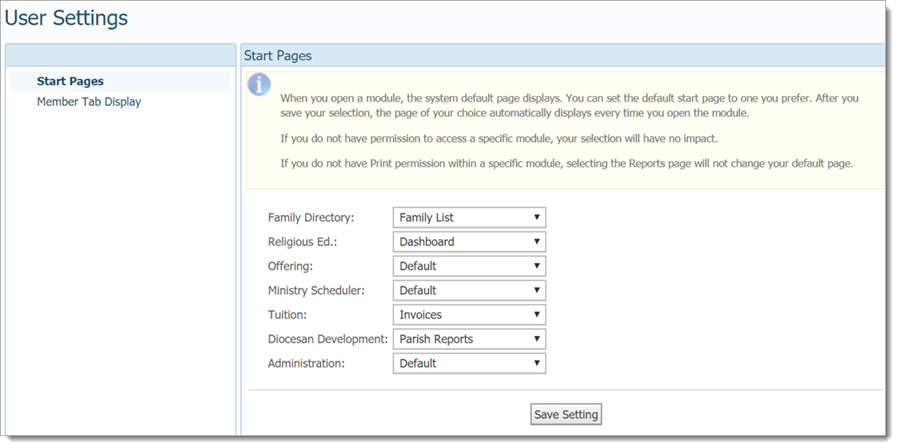
 .
.The next time you open Family Directory, you are taken to the Start page you selected.
 At any time,
you can switch back to the Family List
page
or change your Start page to a different page by repeating the
previous instructions.
At any time,
you can switch back to the Family List
page
or change your Start page to a different page by repeating the
previous instructions.