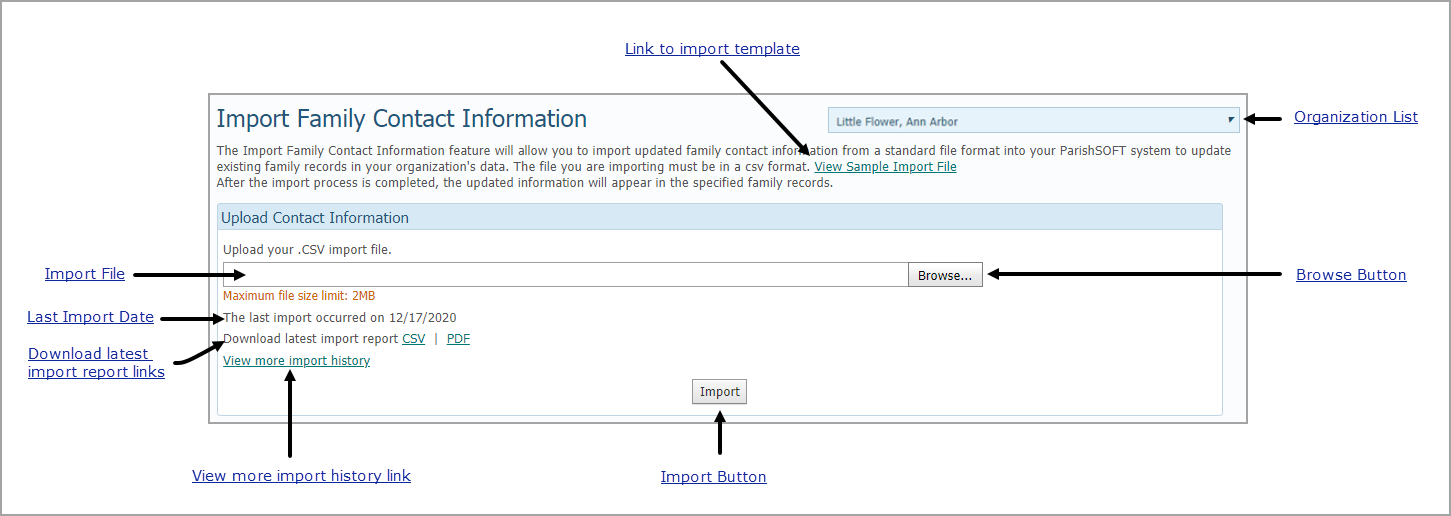
The Import Family Contact Information page allows you to import files from external applications to update member contact information in your database.
Overview of the Import Family Contact Information Page
The Import Family Contact Information page provides functions that enable you to update family records in your database by importing contact data from third-party applications, such as Constant Contact and Mailchimp. The ability to import contact data can save your organization considerable time and effort, especially if you need to update a lot of records.
The illustration below identifies the main elements on the Import Family Contact Information page. Place your mouse pointer over a hyperlink (without clicking) to view a general description of the element. Click the link to jump to the section later on this page that provides more detailed information.
Two levels of permissions are used to control access to the Import Contact Information feature:
● Global Permission
Permission to use the Import Contact Information feature is granted by the diocese and applies to all parishes under its jurisdiction. Only a user with Diocesan Admin privileges can grant (revoke) this permission.
 If you are a Diocesan Admin user, see the online Help
for the Administration module for instructions on how to grant the Import
Contact Information permission to parishes.
If you are a Diocesan Admin user, see the online Help
for the Administration module for instructions on how to grant the Import
Contact Information permission to parishes.
● Staff User Permissions
After a diocese grants permission to its parishes to import contact data, parish users with Organization Admin privileges can import contact information into their databases. If desired, Organization Admin users can delegate import permission to individual staff users in their organization.
If you are a user with Organization Admin access, see
the online Help for the Administration module for instructions on how
to grant staff users permission to import contact information.
The organization associated with your ParishSOFT login credentials automatically appears in the Organization list, which is located in the upper-right corner of the Import page. If you manage several organizations, select the organization you want to import your records into.
The Organization
list includes only the organizations the logged-in user has permission
to access.
Click this link to download a sample import template to your computer. The template is a .csv file that is pre-filled with content that you can replace with your own contact data.
 : click this
button to browse through the file system on your laptop or PC to locate
the .csv file you want to import.
Follow your browser's process for uploading files.
: click this
button to browse through the file system on your laptop or PC to locate
the .csv file you want to import.
Follow your browser's process for uploading files.
The system recognizes and processes .csv files
only. Make sure that the file you are uploading ends with a .csv extension. The maximum file size
allowed is 2 MB.
After you upload the .csv file, the name of the file is displayed in this field. Note that the maximum size of the file is 2 MB.
If you previously imported a file, the system shows the date of the most recent import in mm/yy/dddd format.
CSV: click to download the .csv version of the summary report for the last import. The .csv version is compatible with Microsoft Excel.
PDF: click to download the .pdf version of the summary report for the last import.
The system creates an summary report for each import. Clicking this link takes you to the history list where you can download reports for previous imports.
 :
click to import the data in the file into your system.
:
click to import the data in the file into your system.
How to Import Family Contact Information