
This topic shows you how to add or edit information in a sacrament record in Member Details. The ability to perform these tasks depends on organization-wide permissions and user permissions.
Understanding Permission Settings for Adding and Editing Sacrament Data
Your Ability to See Sacrament Data
Viewing Sacrament Summary Information
The following ability to add or edit a member's sacrament information is controlled by the following:
● Sacrament permissions (applies to editing only)
The higher-level organization determines whether or not an organization it oversees can edit sacrament records. Therefore, you can edit sacrament records only if the higher-level organization enables sacrament permissions for the organization in which you reside.
● Product license key
For you to add or make changes to member sacrament records, the organization in which the you reside must have an active product license key for the Family Directory module.
● Staff permissions
You must have the appropriate permissions (Family Directory > Add/Edit) assigned to you to add or make changes to sacrament records. These permissions are assigned by your organization administrator and tied to your login credentials.
If you are having trouble adding or editing sacrament records, contact your organization administrator for assistance.
Your ability to see sacrament data is controlled by your diocese, specifically:
● If your diocese chooses to hide a specific sacrament, the sacrament does not appear on the Sacraments tab in Member Details, so you cannot the member's data for that sacrament.
● If your diocese hides all sacraments, the Sacraments tab is not visible, so you cannot access any of the member's sacrament data.
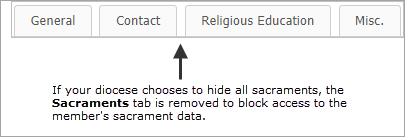
Note if your diocese removes the restriction to hide a sacrament, the system adds the name of the sacrament back to the Sacrament dropdown list. If the entire list was removed, it is reshown after visibility of any individual sacrament is enabled.
Click  to display the
Member
List page.
to display the
Member
List page.
If you manage multiple organizations, select the desired organization from the Organization list.
In the Search field,
type the name of the member for whom you want to add a sacrament record.
Then, click  .
.
Select the link under the member's name to display the Member Details tab.
Select the Sacraments tab, located at the bottom of the tab.
The Sacrament Entry/Summary shows information for each sacrament.
To view more details for a specific sacrament, click its Details link to open the sacrament record.
to display the Member
List page.. to put the record in
edit mode.
to put the record in
edit mode. All of the following information
is not required. Therefore, provide as much information as you know. You
can always come back later to add or edit the information.
All of the following information
is not required. Therefore, provide as much information as you know. You
can always come back later to add or edit the information.
 and select
a date from the calendar or type the date directly into the field.
and select
a date from the calendar or type the date directly into the field. to open the Organization Search
window. Enter your search criteria to find the exact name of the location.
to open the Organization Search
window. Enter your search criteria to find the exact name of the location. to save changes
to the database. The tab remains in edit mode to enable you to continue
adding information.
to save changes
to the database. The tab remains in edit mode to enable you to continue
adding information. to save the information.
You exit the tab and return to the Member
List.
to save the information.
You exit the tab and return to the Member
List. to exit the tab
and return to the Member List. You
are prompted to save or cancel the task.
to exit the tab
and return to the Member List. You
are prompted to save or cancel the task. to cancel to exit
the tab without saving the information.
to cancel to exit
the tab without saving the information.Click to display the
Member List page.
If you manage multiple organizations, select the desired organization from the Organization list.
In the Search field, type
the name of the member whose information you want to edit. Then, click
.
In the grid, select the member's name link to open Member Details.
To edit a sacrament record, select the Sacraments tab.
A list of sacraments is displayed.
In view mode, the field label
shown on the Holy Orders record is simply "Holy Orders." After
you put the record in edit mode, the highest degree conferred for this
sacrament is appended to the field label. For example, "Holy Orders
(Episcopal)."
Click
to put the record in edit mode. Alternatively, click the Details
link (to open the specific sacrament in edit mode).
Make the necessary changes to the record.
Do one of the following:
Click to save changes
to the database. Then, click to exit.
Click to exit the tab without
saving the changes.