How to Create a Birthday Report
The Birthday
Report enables you to create a list of member birthdays along with each
member’s contact information. This report gives staff quick access to
member birthday information for birthday announcements, mailings, emails,
and other birthday acknowledgements.
Click
 to display the Member
List page.
to display the Member
List page.
If
necessary, select the desired organization from the Organization
list.
You
can easily generate a full list that includes the birthdays of members
in your organization or you can create custom birthday lists by using
the filtering tools. Do one of the following:
If
you want to generate a list of birthdays for specific members, check
the box to each member's name. Then, go to Step 4.
If
you want to generate a complete list of member birthdays, click  to select all members in the Member
List. Then, go to Step 3.
to select all members in the Member
List. Then, go to Step 3.
If
you want to create a custom birthday list, complete these steps:
Click  to open
the Filter window.
to open
the Filter window.
Enter or select your filter criteria.
For example:
If
you want to create a birthday list for a specific family group or
workgroup, select the family group or check the name of the workgroup.
Then, click  .
.
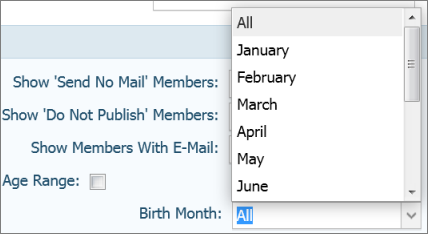
If you want to create list of birthdays
for a specific month, click Advanced Options. Scroll down to the Birth Month option, select the birthday month,
and then click .
The
Member
List updates
with your filter selections.
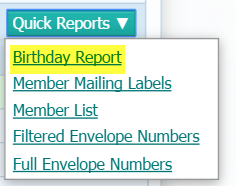
Click
 and
select the Birthday
Report option:
and
select the Birthday
Report option:
The
Birthday Report displays in the Report
viewer. The report shows the member's name and contact information,
date of birth, and age. For example:
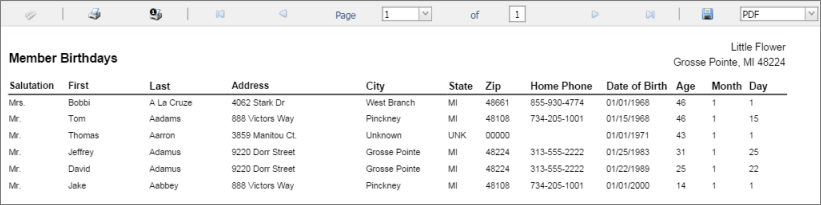
Use the
toolbar functions to view, save, print, or export the file.
Related Topics
About
the Member List Page
How to
Print, View, and Save Reports
How
to Filter Records
<Back
to top>